
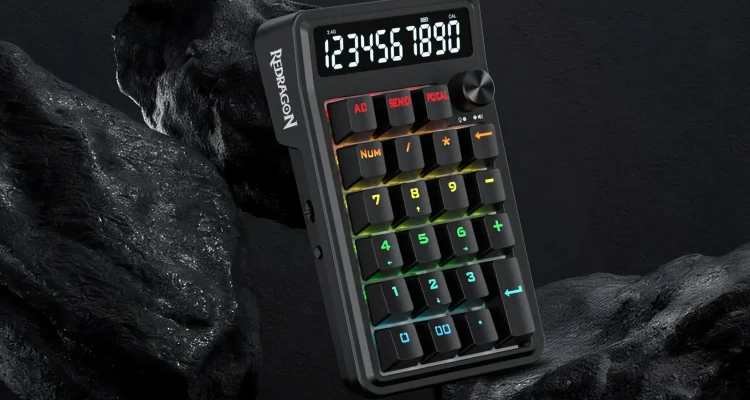
I’ve used plenty of numpads over the years, and there usually isn’t much to say about them. They give you the number keys missing from a TKL or compact keyboard, maybe throw in some RGB, and that’s about it.
The Redragon COVE K733 is different.
Yes, it’s a wireless mechanical numpad, but the feature that makes the COVE genuinely useful is sitting right at the top: it’s also a standalone calculator.
And after using it, that has easily become my favorite feature.
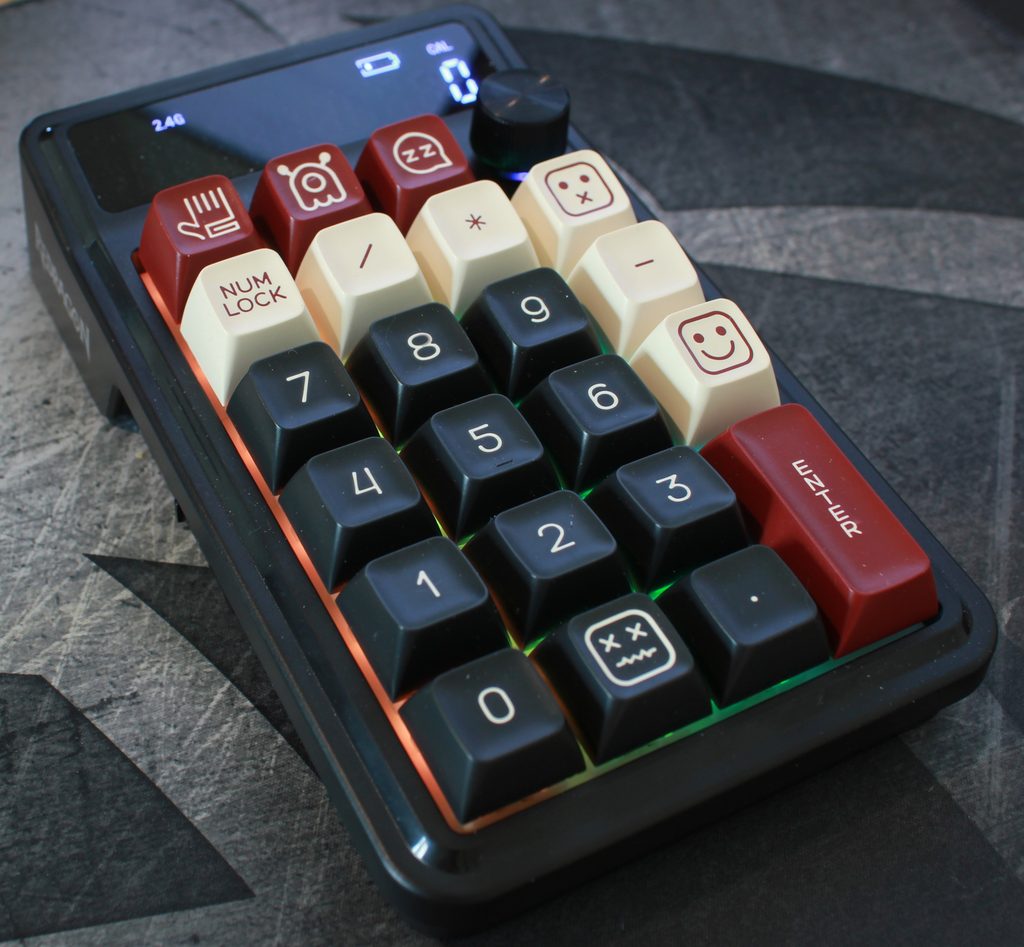
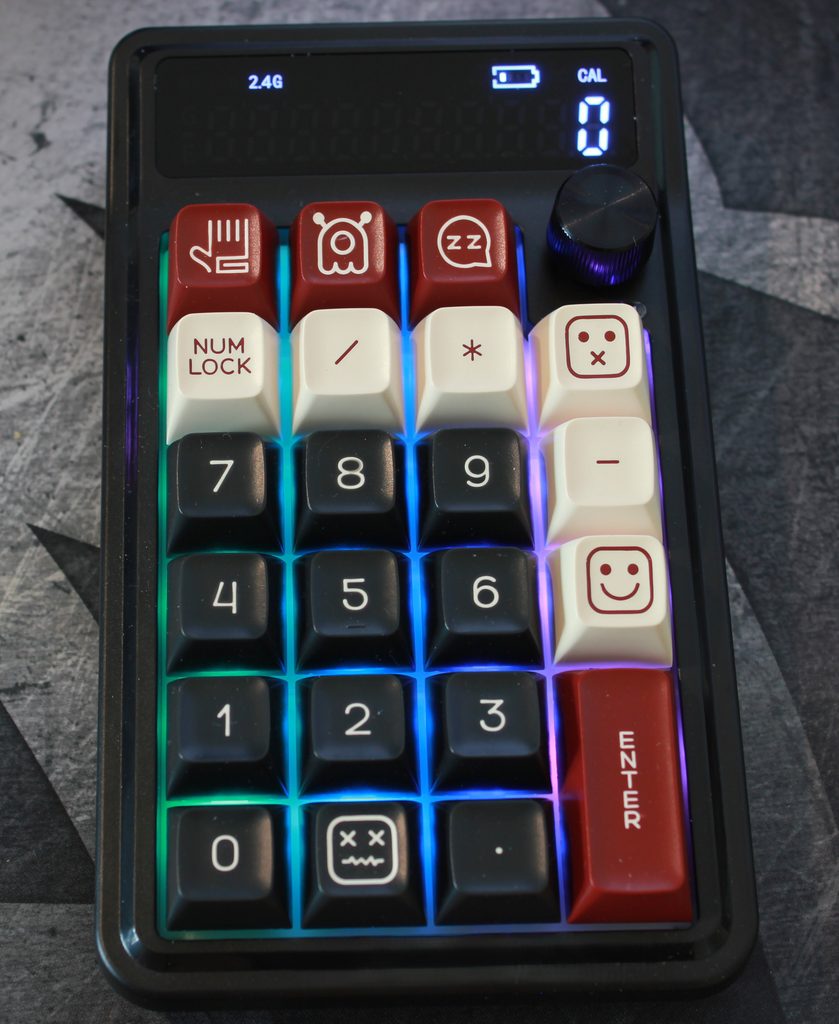
Here are some images where I swapped out the key caps to match my current TKL keyboard.
Interested in the Redragon COVE K733?
Save 10% when you purchase directly from Redragon.
Affiliate link — I may earn a commission from qualifying purchases at no additional cost to you.
A Numpad and a Real Calculator
The COVE can switch between working as a PC numpad and operating as a standalone calculator. That sounds like a relatively small addition, but it completely changes how I use it.
I no longer need to keep a separate calculator on my desk.
When I want to do a quick calculation, I can switch the COVE into calculator mode and use it exactly like I would a traditional desktop calculator. There’s no need to open the Windows Calculator app, grab my phone, or clutter the desk with another device.
It even has a 00 key, which I love seeing. Double-zero keys used to be fairly common on desktop calculators, especially those designed for accounting and data entry, but you don’t see them nearly as often anymore.
For anyone who regularly works with dollar amounts or large numbers, that little 00 key is surprisingly nice to have.
The Send Button Is Brilliant
Redragon also did something clever with the calculator mode.
After doing a calculation, you can press the Send button and transfer the number currently shown on the COVE’s display directly to the PC.
For example, I can calculate something on the COVE, click into a cell in Excel, press Send, and the result is entered into that cell. The same thing works with Notepad or whatever other application currently has focus.
That bridges the gap between having a physical calculator and using software on the PC.
Instead of calculating something separately and then manually typing the answer into Excel, I can calculate it on the COVE and simply send the result over.
That is the kind of feature that could easily sound gimmicky on the box but turns out to be genuinely useful in everyday use.
The Knob Does Exactly What I Want
My second favorite feature is the dial.
When using the COVE with the PC, the knob controls system volume (and RGB brightness). Turn it one direction to raise the volume, the other direction to lower it, and press it to mute.
Simple.
I’m a big fan of having a physical volume knob on a keyboard, so having one available on the COVE means I don’t have to give that up when using a keyboard that doesn’t include one.
It also makes the COVE more useful beyond number entry. Even when I’m not punching numbers into Excel, I still have a reason to keep it within easy reach.
A Great Companion for TKL Keyboards
The COVE makes a lot of sense if you like TKL or other compact mechanical keyboards.
I prefer having the extra desk space and layout of a TKL, but there are still times when a proper number pad is much faster than using the number row. A separate numpad gives me the best of both worlds: I can move it out of the way when I don’t need it and bring it over when I do.
The COVE also gives you plenty of flexibility in how you connect it. It supports both 2.4GHz wireless and Bluetooth, in addition to a wired USB connection. That makes it easy to keep the numpad separate from the keyboard and move it around the desk without another cable getting in the way.
The COVE takes that idea further because it isn’t just duplicating the missing section of a full-size keyboard. The calculator, display, Send function, 00 key, and volume knob give it functionality I wouldn’t have even if I switched back to a typical full-size keyboard.
That makes it much easier to justify having another device sitting on the desk.
My Biggest Complaint: The Display Angle
There is one thing I would change.
The display needs to be angled upward more.
The screen itself is useful, particularly in calculator mode, but its viewing angle isn’t ideal when the COVE is sitting flat on a desk.
I would have preferred Redragon to tilt the display toward the user more aggressively. Another simple solution would have been adjustable feet on the bottom of the COVE so the entire unit could be raised at the rear.
This isn’t enough to ruin the experience, but it is something I notice regularly. Given how important the display is to one of the COVE’s best features, I wish Redragon had put a little more thought into its viewing angle.
More Than Just a Numpad
The easiest way to describe the Redragon COVE K733 would be to call it a wireless mechanical numpad, but I think that undersells it.
For me, it has essentially become three devices in one:
- A mechanical numpad for my PC
- A standalone desktop calculator
- A convenient PC volume controller
The calculator is easily the star of the show. Being able to switch into calculator mode, work independently from the PC, and then hit Send to drop the result directly into Excel or another application is fantastic.
Add the dedicated 00 key and volume knob, and Redragon has managed to make a numpad that I actually enjoy having on my desk rather than something I pull out of a drawer whenever I need to enter a bunch of numbers.
I still wish the display were angled upward more—or that Redragon had simply added adjustable feet—but that’s my biggest complaint about an otherwise extremely useful little device.
If you use a TKL or compact keyboard but occasionally miss having a numpad, the COVE is already worth a look. If you also keep a calculator on your desk, it becomes considerably more interesting.
The Redragon COVE K733 didn’t just give me back the numpad I gave up by using a TKL. It replaced my calculator too—and that’s what makes it stand out.
Think the Redragon COVE K733 is right for you?
Save 10% when you purchase directly from Redragon.
Affiliate link — I may earn a commission from qualifying purchases at no additional cost to you.


No Comments on "Redragon COVE K733 Review: A Numpad That Replaced My Calculator"