
The Problem
If you have several names or other items typed into one Excel cell and want each item in its own row, you can use a formula to split the list.
For example, you might have this in cell A1:
Mary, John, Mark, Peter, Louise
Or the names might be separated by spaces:
Mary John Mark Peter Louise
The Solution
Click an empty cell where you want the list to start, then enter this formula:
In excel:
=TRANSPOSE(TEXTSPLIT(TRIM(C1),{","," "},,TRUE))
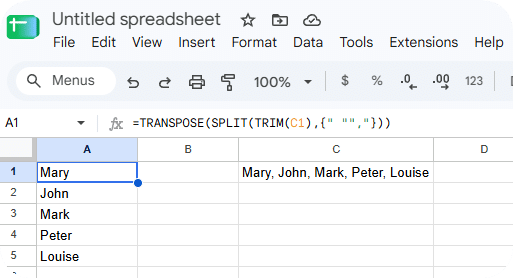
For Google Sheets:
=TRANSPOSE(SPLIT(TRIM(C1),{" "","}))Press Enter. Excel will spill the names down into a column:
| Mary |
| John |
| Mark |
| Peter |
| Louise |
The TEXTSPLIT function separates the text wherever it finds a space or comma. The braces {} tell Excel to use both characters as delimiters. TRIM removes extra spaces at the beginning and end, and TRANSPOSE turns the split results into a vertical column.
Make sure the cells below your formula are empty so Excel has room to display the results. This formula requires an Excel version that supports TEXTSPLIT, such as Microsoft 365 or Excel 2024.
Final Thoughts
Hopefully this helps if you need to turn a list in one cell into a column of separate items. I always welcome comments or alternative ways of doing things, so feel free to comment below. Please check out other articles on NotPosted.
See also:
How to turn a column of names into a comma separated list using excel


No Comments on "How to Turn a Space or Comma Separated List into a Column in Excel"